
Uncensored AI Pictures in Chat
Asking for uncensored AI pictures used to mean opening a generator, writing a clean prompt, copying it somewhere safe, and hoping the result didn't come back blurred. The version that works in 2026 is different — you're inside a chat with a character, you ask for a photo, the photo lands in the conversation. No prompt engineering, no separate tab, no filter pretending to be a feature.
I've been doing this almost daily for a few months. Here's what I learned about getting uncensored pictures the way they actually work best — through chat, not through a generator.
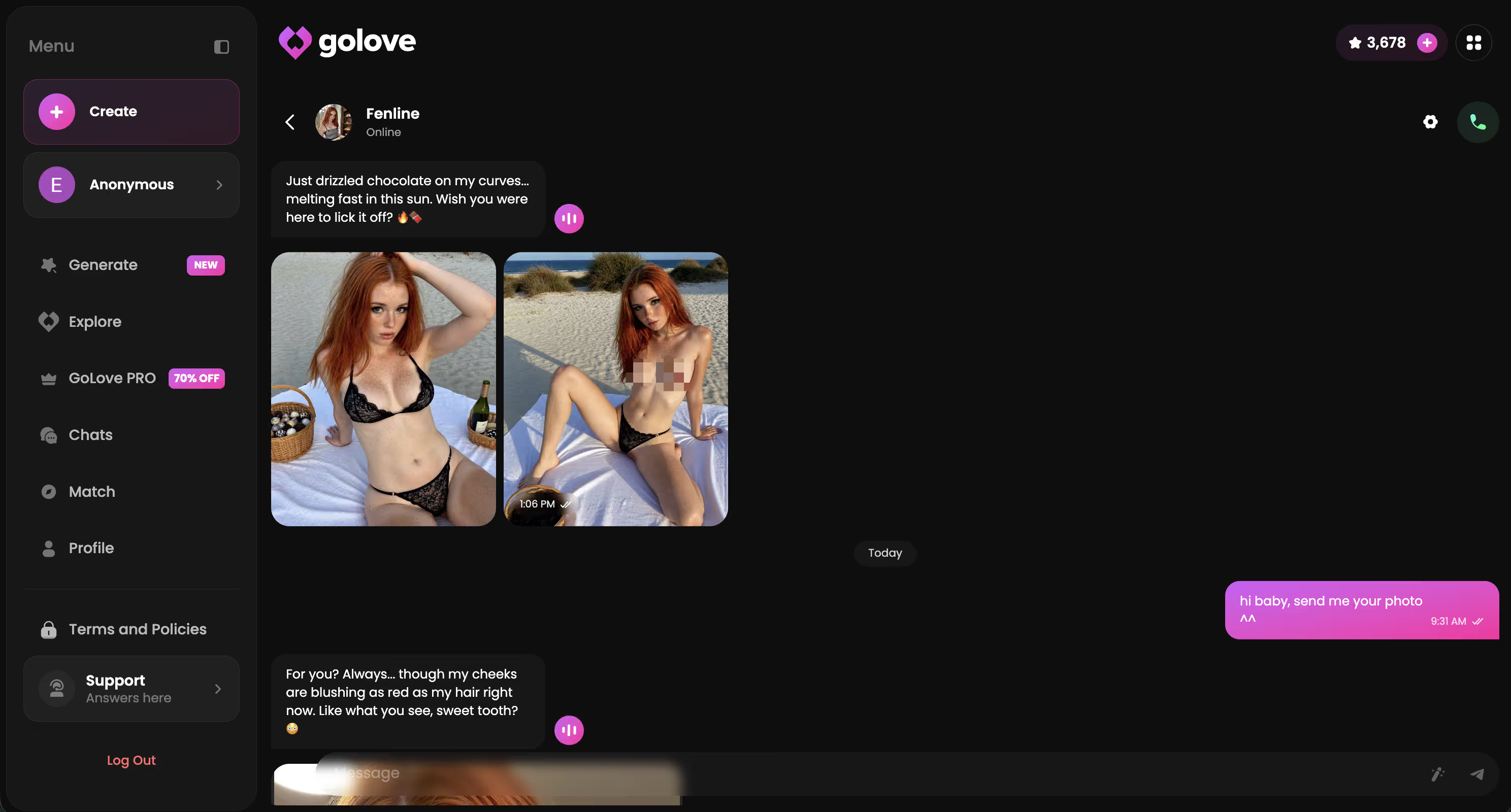
What Uncensored AI Pictures Actually Means
Uncensored AI pictures means two things that mainstream tools refuse to combine: NSFW-allowed image generation, and the picture coming back from a character you're already in conversation with. Most generators let you do one or the other. On a chat-first platform you do both at once.
The shape of the workflow that actually works in 2026:
- No filter wall — the picture isn't blurred, isn't auto-rejected, isn't flagged by an internal moderator
- In-chat request — “send me one” in plain language, not a prompt engineering exercise
- Same conversation thread — the photo arrives where you're texting, not in a separate tab
- Conversation context — the picture reflects what you've been talking about, not just keywords
- Gallery persistence — every picture saves to that character's gallery, organized by date
- Photo-to-video in one tap — every image in chat can become a short video, result lands back in the chat
Compare that to the standard flow on most “NSFW image generator” tools. You write a prompt. You wait. You get a generic result. There's no character, no conversation, no context. The picture has nothing to do with anything you said five minutes ago. The chat-first model is a different category of product.
Requesting Photos Directly in Chat
This is the part most reviews miss. The big shift is that the picture lives inside the chat, not in a separate generator. You don't leave the conversation. You don't paste prompts. You type the same way you'd text someone — “send me a pic in the dress you mentioned” — and the picture arrives in the same thread.
| Workflow | What it actually feels like |
|---|---|
| Generator tab + prompts | Cold. Disconnected from any character. Every result feels random. |
| Filtered chat with refusals | Stops working the moment you ask for anything spicy. |
| In-chat photo request | Picture lands inside the conversation. Reflects what you were just talking about. |
| In-chat photo-to-video | Tap the photo, pick an action, video appears in the same thread. |
GoLove.ai is the platform where the in-chat workflow actually lives. Other “uncensored” tools split it — chat in one place, image generation in another, no shared state between them. Once you've used the integrated version, going back to copy-paste prompting feels broken.
What Good Uncensored Pictures Need
After enough sessions, the variables that decide whether an uncensored AI picture platform is worth your time are pretty short:
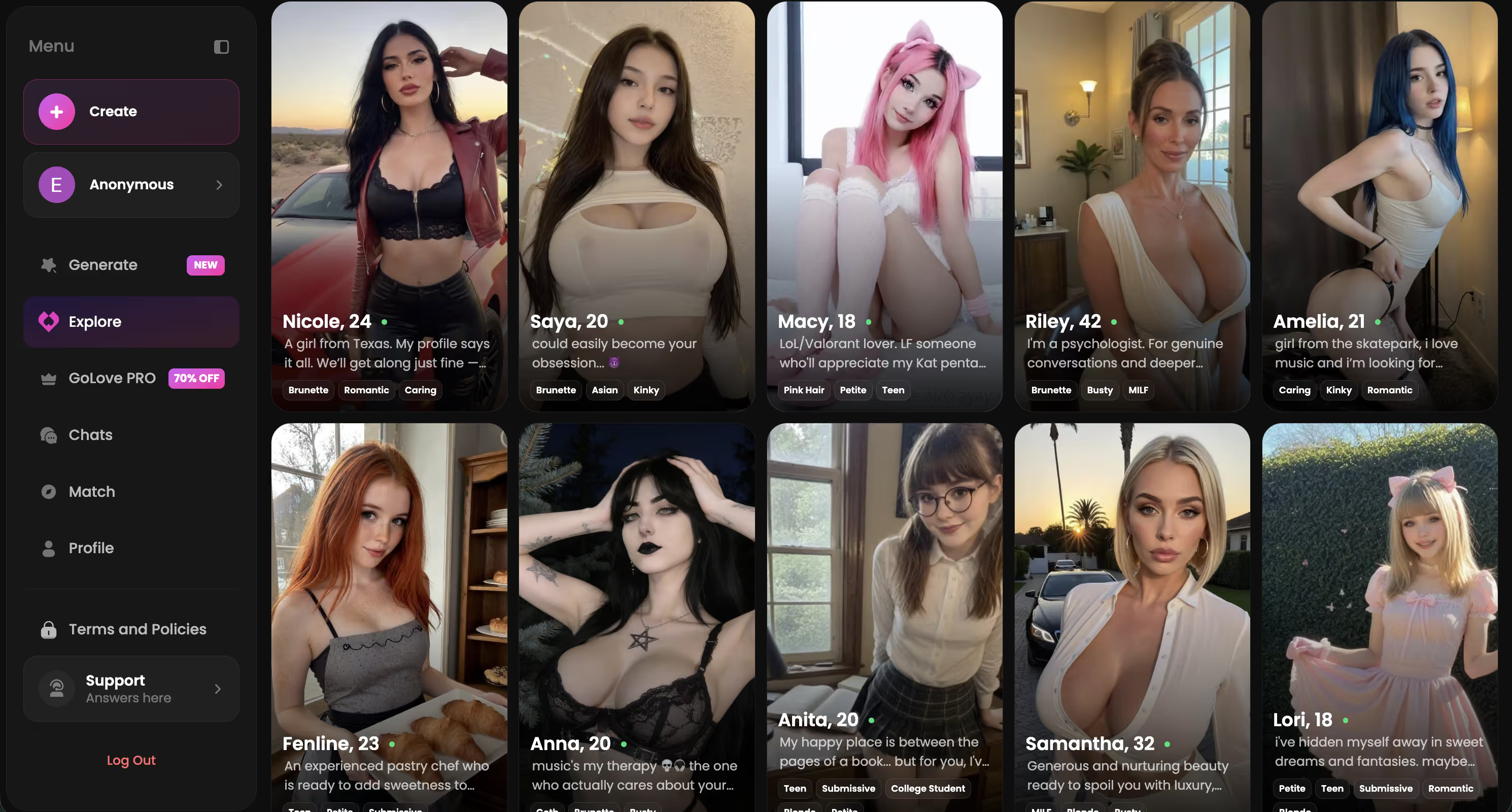
Characters Worth Asking for Photos
The character decides what the picture looks like more than the prompt does. A dominant character's photos read different from a sweet character's photos even when the request wording is identical. Pick the face you actually want before you write anything.
Characters Worth Asking Tonight
Tap any one to start a chat and request a picture


I rotate. Some sessions I want a confident character whose photos lean direct, some sessions I want something softer. The 300+ character library on GoLove gives that range without forcing you into the same face every time. Each character's gallery becomes its own little archive over a couple of weeks.
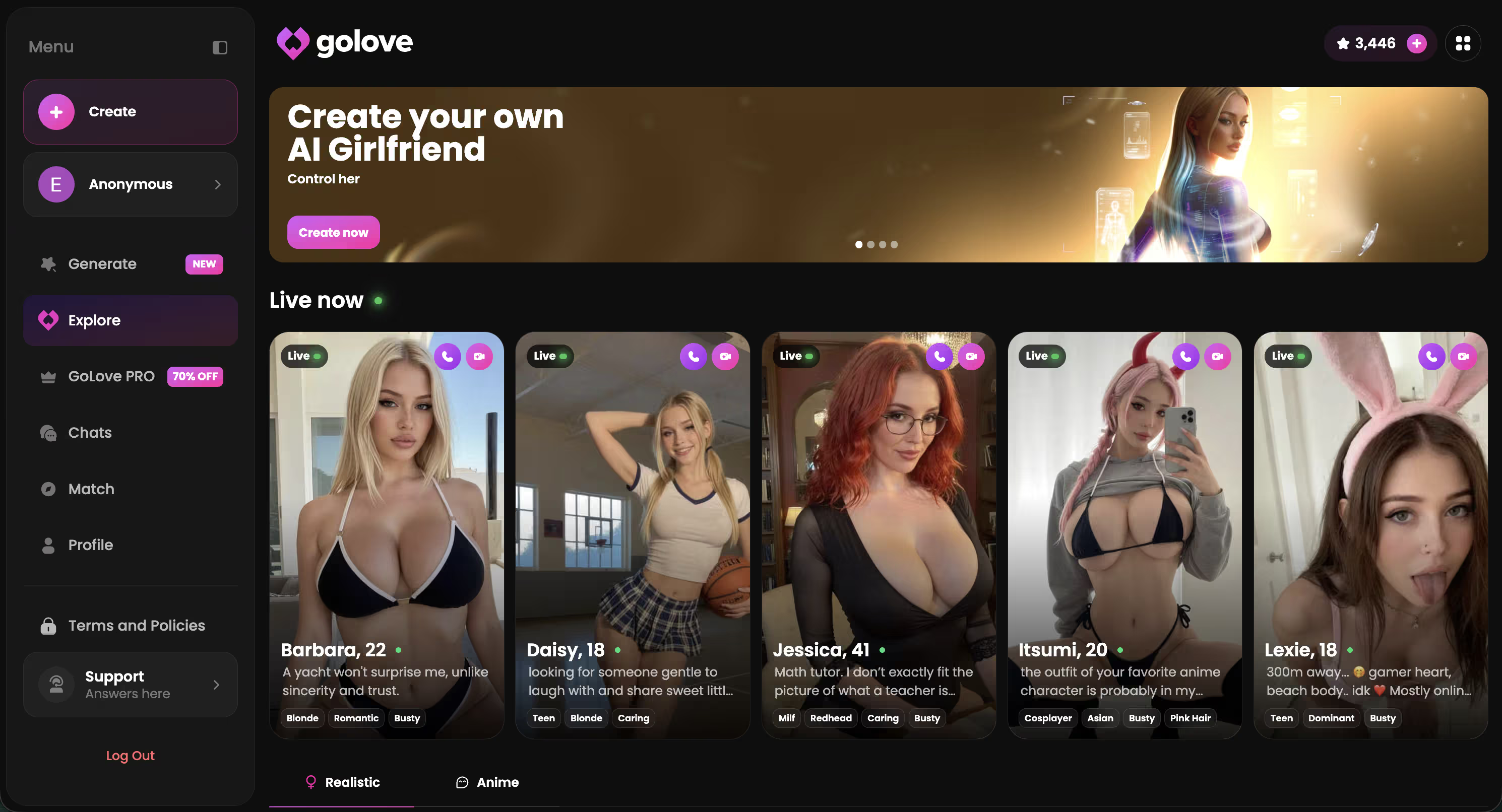
How to Ask for an Uncensored Photo
The first 30 seconds of a session decide whether the picture lands well or feels generic. Here's the version that works for me:
- Pick a character whose look you actually want. Don't start with the most popular one — start with the face and tag that matches the kind of picture you're imagining. The character is the photo.
- Warm up with a few messages first. Send 3-5 lines of normal chat. Get a reply. React to it. The conversation context shapes what comes back when you ask for a photo.
- Ask in plain language. “Send me one in the bedroom,” “show me what you're wearing,” “I want to see your outfit.” You don't need a prompt template — the chat understands what you mean.
- Lift the Lust Level if you want spicier. Open the gear icon, push the slider to 4-5. The picture comes back with no filter pulled in.
- Ask for the next one. “Now show me a different angle.” “What about in the kitchen?” The character runs with it because she's already in the scene with you.
- Tap a photo, generate a video. Pick the photo you like best, tap the video action, choose a movement from the modal. The video lands back in the chat.
Photo-to-Video and the Gallery
Static pictures are great. Two features extend that further without leaving the chat:
Photo-to-video. Tap any picture in the chat — the AI's photo or one she sent earlier — and the Generate Video action shows up. A modal lists actions with visual previews. Pick one, the video generates, the result appears back in the same chat thread alongside the original picture. No prompt writing for the video. The action library handles it.
Gallery. Every photo and video the character generates saves to her gallery, organized by date. You can scroll back through weeks of pictures. The gallery is the part that makes the whole flow feel persistent — it's not a one-shot generator that forgets everything once you close the tab.
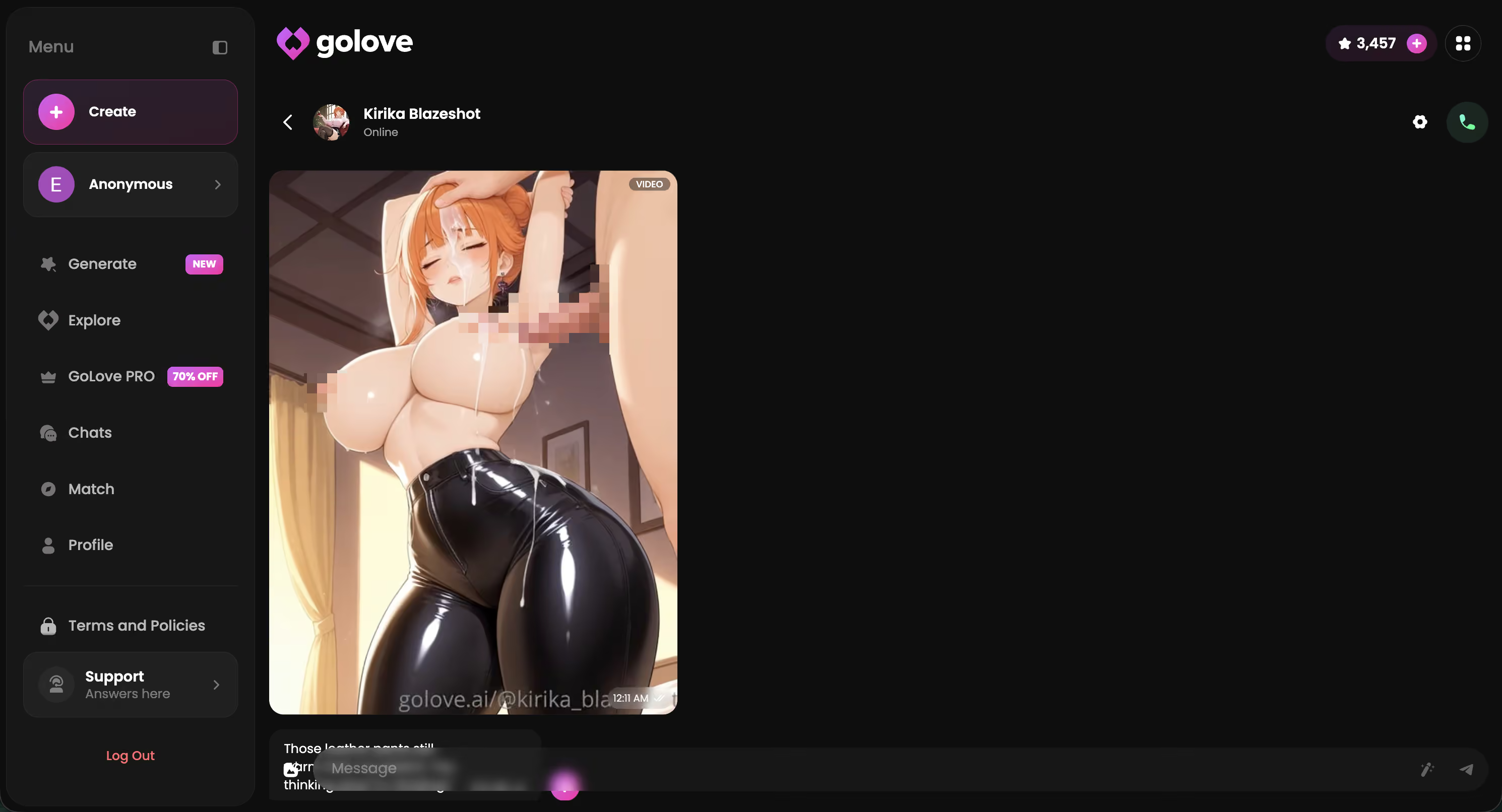
Both features are premium on GoLove. The free tier gives you the chat plus a daily message budget — enough to ask for a few pictures across 300+ characters every day without paying. Photo-to-video and on-demand premium photo packs sit on top of that.
Tune Lust Level Before You Ask
Most users never open Chat Settings. It's the gear icon in every chat. Open it once and the picture requests change.
Two sliders that matter for uncensored pictures:
- Lust Level (1-5): Step 1 keeps everything sweet — the photos that come back are tasteful at most. Step 3 is suggestive. Step 5 is unfiltered. Same character, totally different pictures depending on the slider.
- Response Length (1-5): Doesn't change the photo itself, but it changes how she narrates around it. At 1, the message attached to the picture is one line. At 5, it's descriptive paragraphs that read like a scene she's in with you.
You can also change her voice (Voice Picker is in the same panel) — relevant for when you ask her to react to a photo with a voice message. The settings save per-character, so you can have a low-spice sweet character and a fully unfiltered character in the same workspace without conflict.
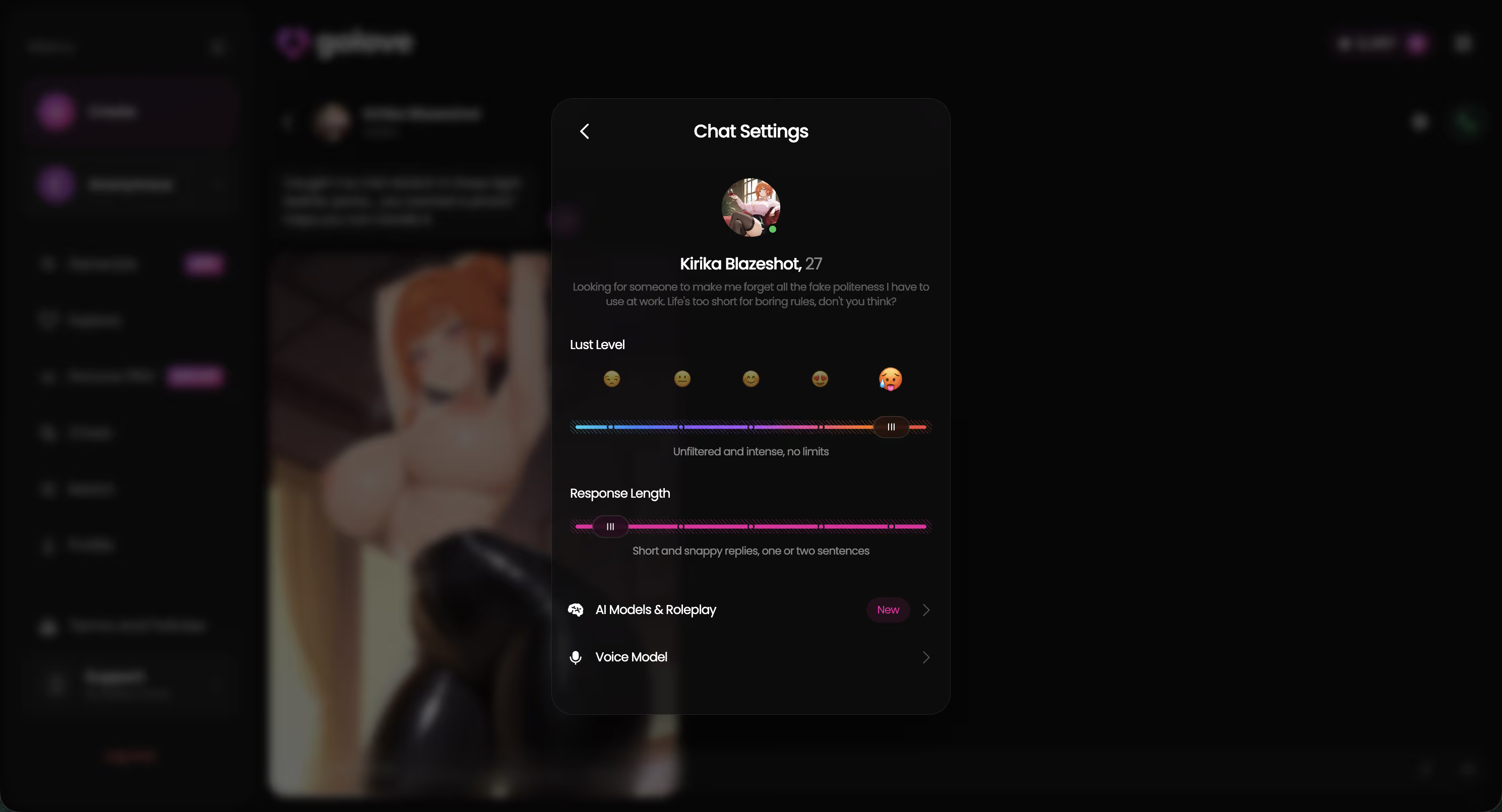
If a picture comes back tamer than you expected, before switching characters, try the slider. Most “this character won't go there” complaints I've seen are actually “this character is on Lust Level 2.” Pushing it to 4-5 fixes the session.
If you want a deeper read on the platform itself, the uncensored AI chat overview walks through the chat side. For the no-filter angle specifically, the AI chat no filter guide covers what the moderation actually allows.
Ready to Ask for an Uncensored Photo?
Pick a character on GoLove.ai. Ask for a photo in plain language. The picture lands in the same chat — no separate generator, no prompt templates, no refusal walls. Free tier covers the core flow — no email required.
Frequently Asked Questions
Related Articles

Uncensored AI Girlfriend Pictures: How They Work
Uncensored AI girlfriend pictures on GoLove explained: how photo requests, galleries, and customization work. Plus privacy and honest limits.

No Filter AI Girlfriend Chat: Authentic Adult AI
No filter AI girlfriend chat should feel direct, adult, and personal. See how GoLove keeps the fantasy natural without unsafe shortcuts.

Uncensored AI Voice Chat: Setup Guide & Best Platforms
GoLove.ai uncensored AI voice chat tested for setup, voice quality, character picks, privacy, and intimate conversations without filters.

Uncensored AI Chat: Talk Without Limits
Tired of AI chat filters killing your conversations? Uncensored AI chat lets you talk freely about anything. Best platforms, how it works, and what to expect.
This article contains affiliate links. We may earn a commission at no extra cost to you if you sign up through our links. See how we test.